Guides
Connect ChatGPT and Claude: permissions, sharing and revocation
Check your account and sharing scope, query summaries, refresh the copy and stop access when you choose.
For versions and regions where AI sharing is available. Production asset sharing is currently disabled; the sharing steps below are not yet available.
Asset sharing is not yet available
Before you start: check availability
Production connection authorization has been verified, but asset sharing is still disabled. A successful connection does not mean assets are available. Repeated authorization or uploading files will not enable the feature.
Once sharing is available, you need a supported Wert version, an active Pro entitlement and a ChatGPT or Claude account with custom connections. Availability depends on the platform account, plan and region; check the actual interface.
1. Match your Wert account and region
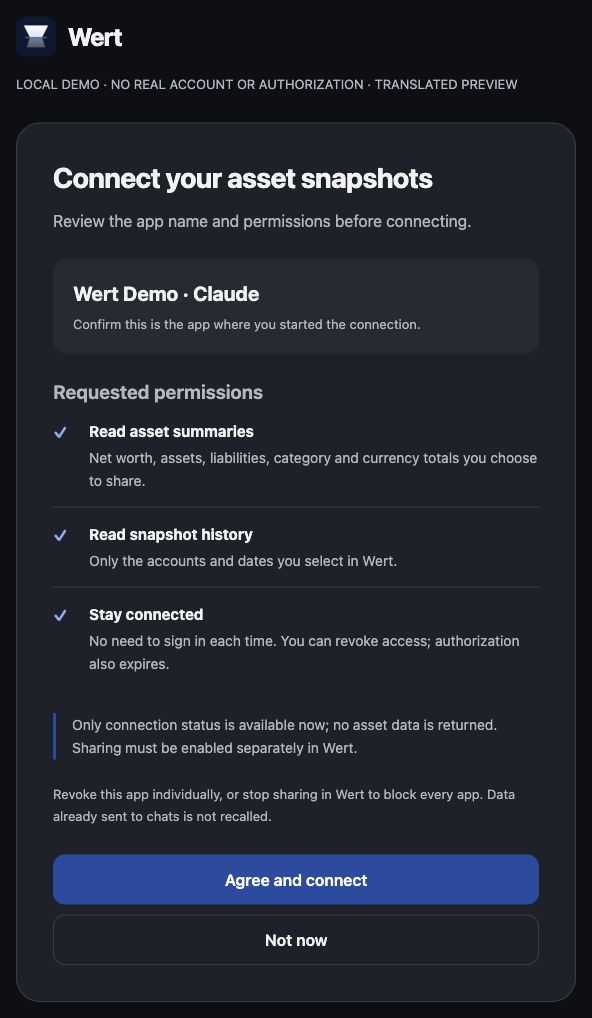
Use the same Apple account on the authorization page as in Wert. A different account can connect successfully without having access to the copy shared by your app.
Use the service region that matches the app. The overseas MCP URL is https://api.wert.app/api/mcp; the mainland China URL is https://wert.interface-tech.com.cn/api/mcp. Do not mix production regions or staging URLs. Contact support if you are unsure which environment your app uses.
2. Authorize each AI app separately
In ChatGPT’s app or connection settings, create a custom MCP connection with the matching URL. On the Wert authorization page, check the account, app name and requested permissions before confirming.
In Claude’s connection settings, add a custom connection with the same region’s URL and authorize Wert separately. If the custom connection option is missing, check platform eligibility. Never paste Apple passwords or authorization tokens into a conversation.
Start by asking: “Check my Wert connection status without querying assets.” Authorization alone does not upload your assets.
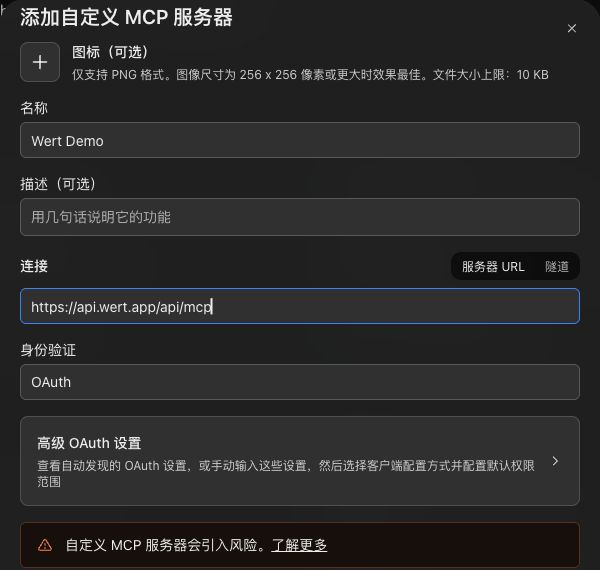
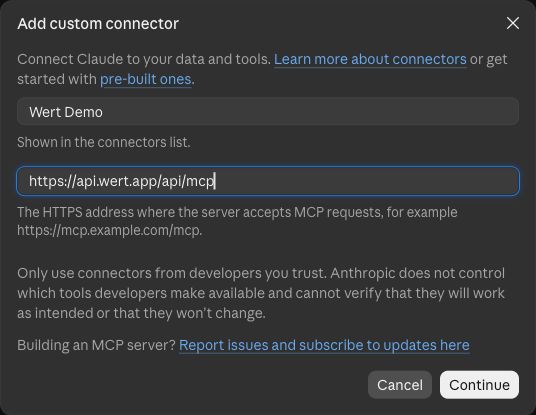
Review the Wert authorization page
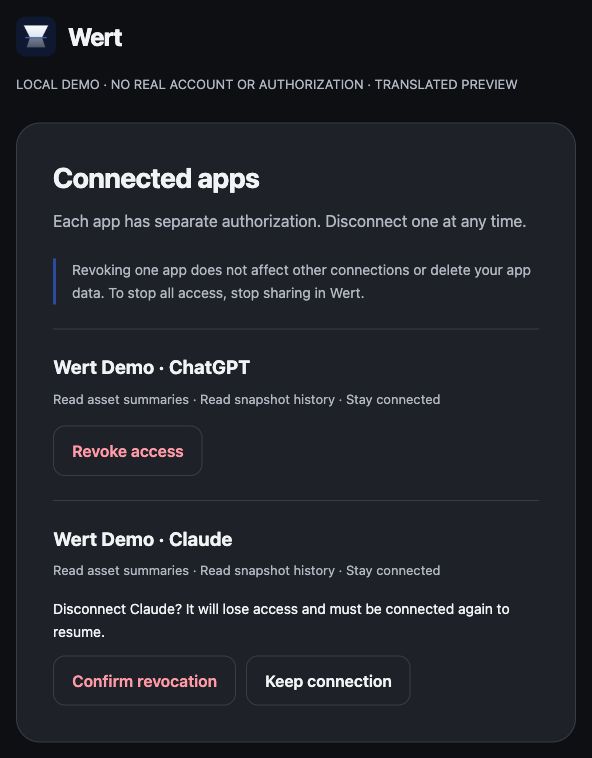
After signing in, confirm the app matches the connection you just started, then review every permission. The Wert screenshots below are inert local demos. Platform captures retain their actual interface language, with translated explanations.
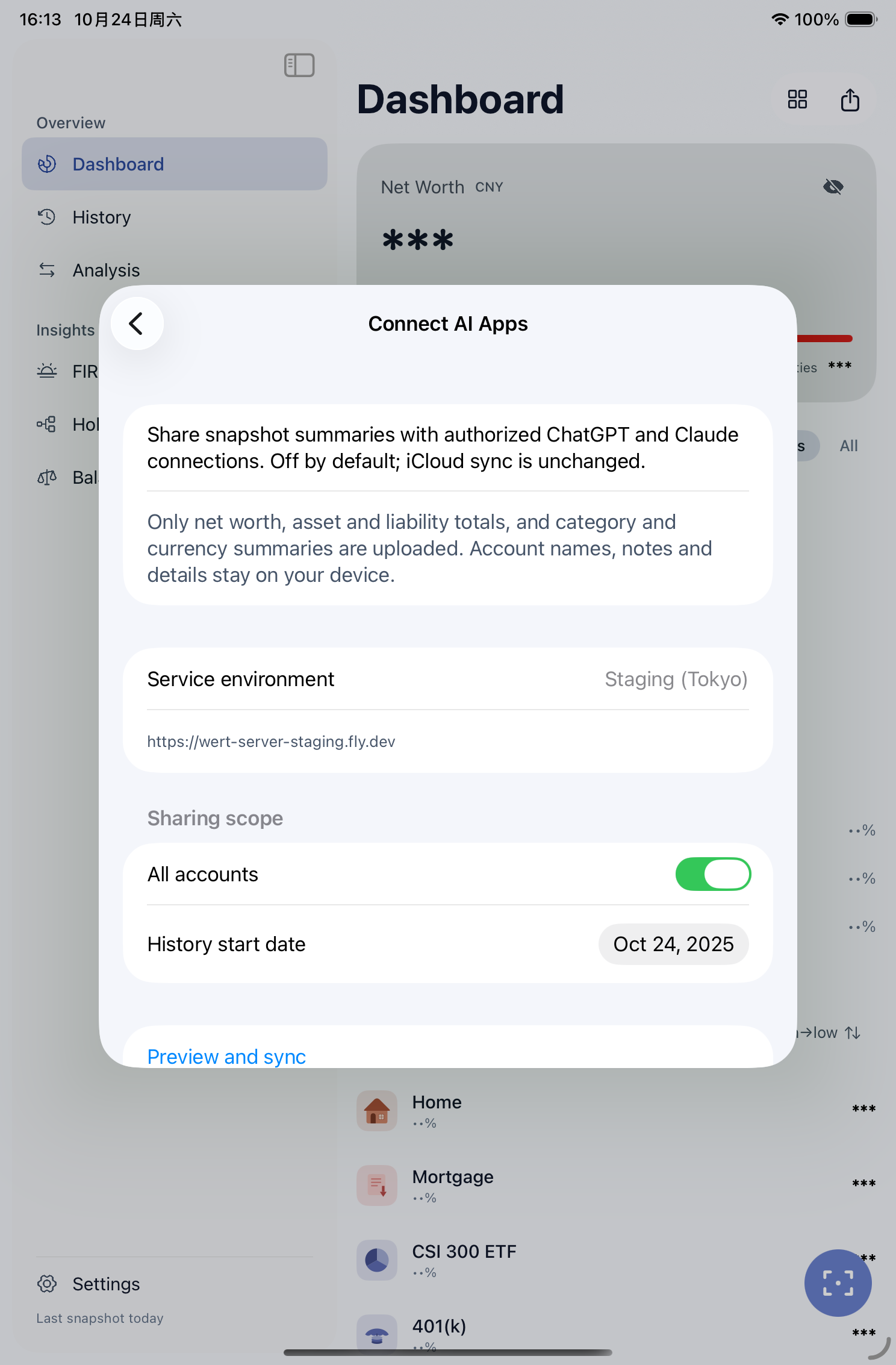
3. Preview and confirm in Wert
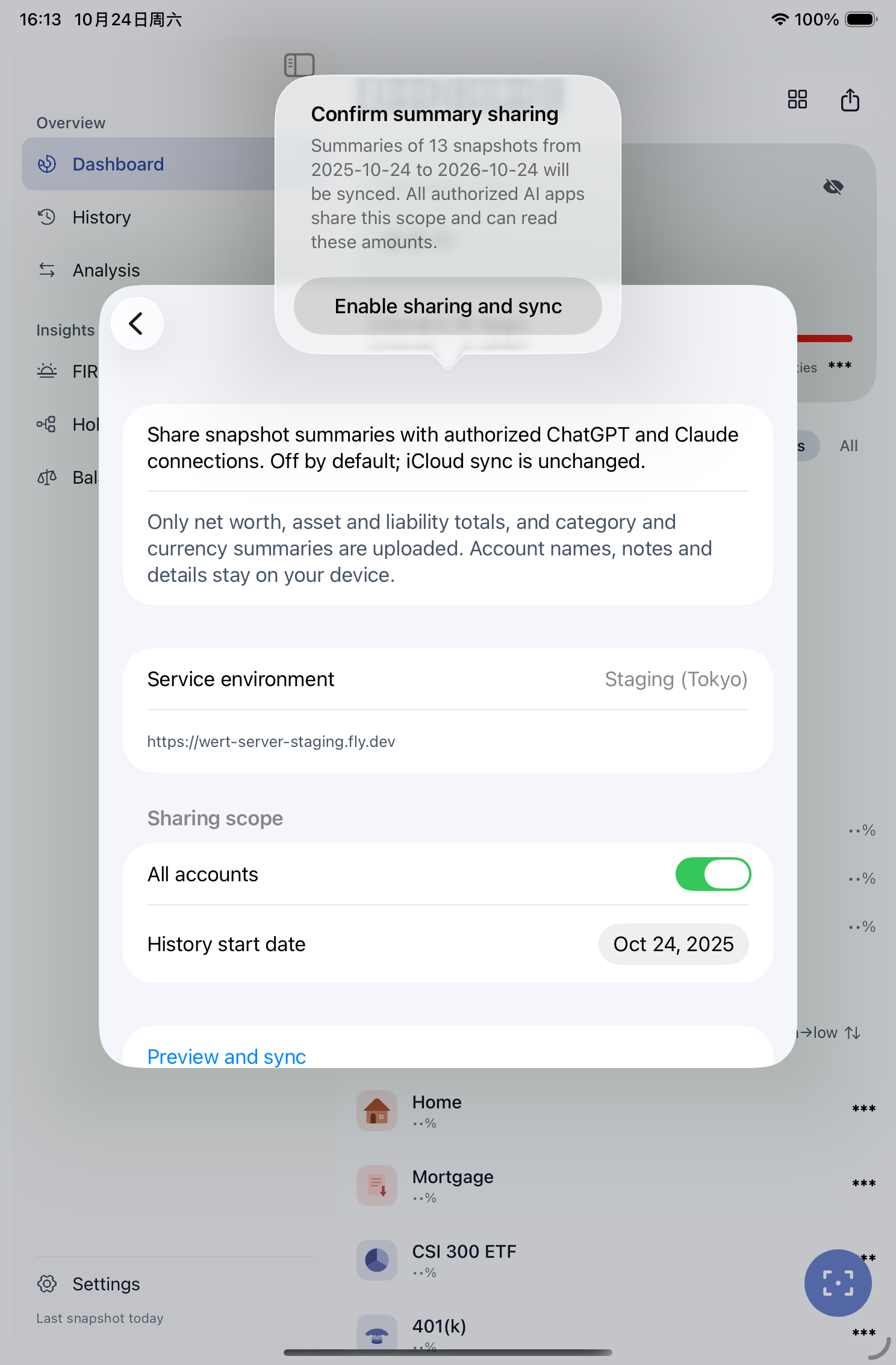
After asset sharing becomes available, open the AI connection page in Wert settings. Choose all accounts or selected accounts and check the history start date. Make sure this device’s data is complete, then preview the sync.
Check the snapshot range before confirming that sharing should begin. Authorized AI apps use the same shared scope, not separate copies for each platform. A manual sync replaces the online copy with this device’s selected scope.
The copy contains summaries for the selected scope, including amounts, categories, currencies and snapshot history. It excludes account names, notes and individual account details. Summary amounts are still sensitive information.
4. Ask about summaries and history
Try: “Summarize my latest snapshot and include its date, sync time and currency.” Or: “Compare net worth and category changes between these two snapshots, and identify missing data.”
The AI reads a synced copy, not live bank balances. Net-worth changes are not automatically investment returns: exchange rates, transfers, account coverage and corrections can all contribute. Verify important numbers in Wert.
5. Refresh the copy and resolve conflicts
After the first manual sync, automatic updates happen on the device with sharing enabled when Wert is active and a snapshot is saved successfully. Opening the AI app does not refresh Wert. After an offline failure, reconnect, review the scope and retry manually.
If another device changes the scope, the older device may report a sharing-version conflict. Review the scope before syncing manually so that old device data does not replace your newer selection.
The copy expires 30 days after its last sync and becomes unavailable for queries. Review the data in Wert and sync again rather than treating an earlier AI answer as current.
6. Stop, revoke or resume
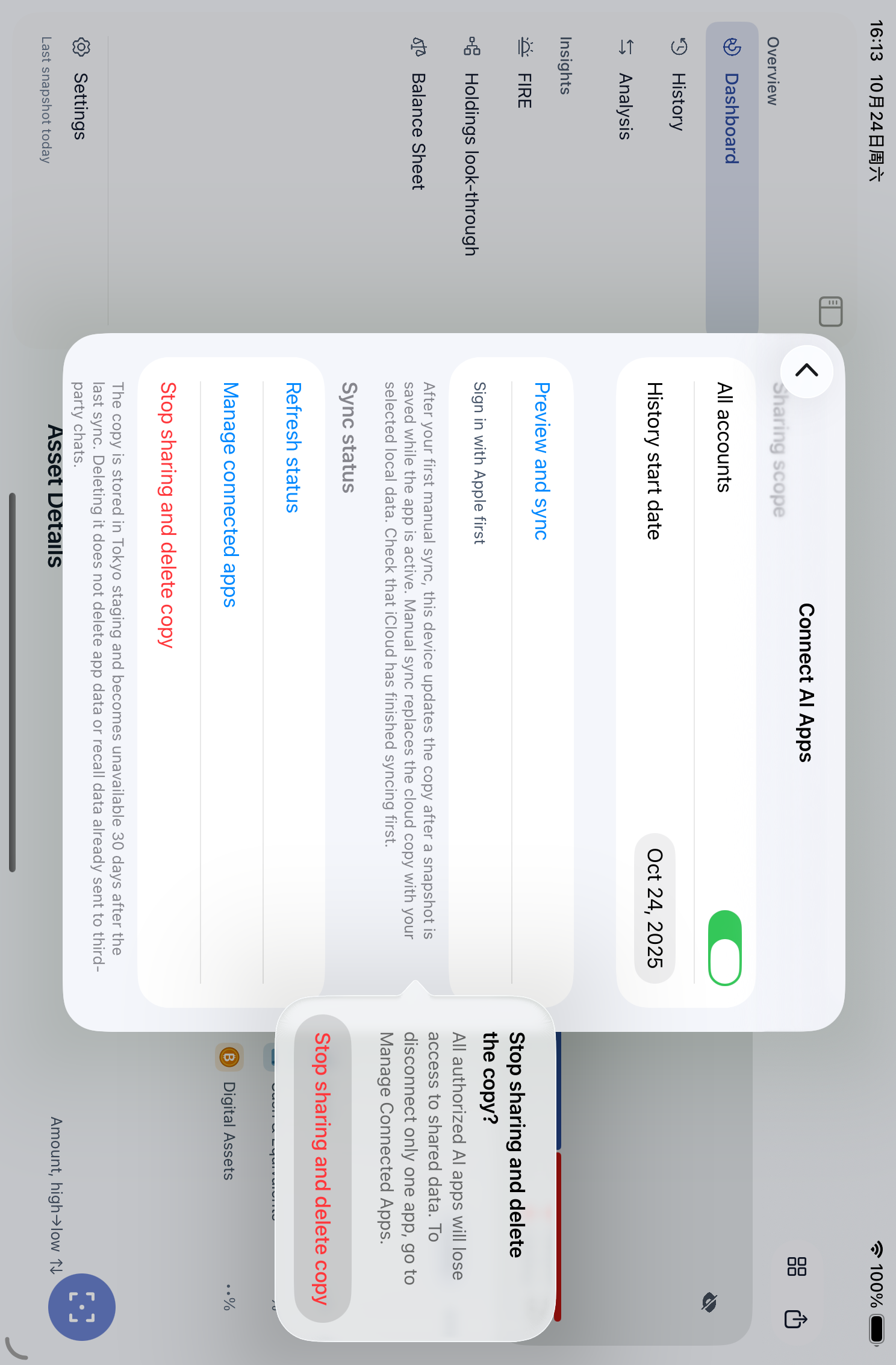
To stop access for every platform, choose the option to stop sharing and delete the copy in Wert, then check that the server confirms success. Local snapshots remain, and connection authorizations can remain in place.
To disconnect only one platform, open the connected-app management page and revoke that authorization. Revoking Claude should not affect ChatGPT, or vice versa.
Before resuming, review accounts and the history start date, then preview and confirm a sync. Reopening the page does not enable sharing. Manage information already included in third-party conversations on those platforms. Deleting the online copy does not delete conversation history or promise immediate physical erasure from infrastructure backups.
Troubleshooting
If Pro is required, check your purchase account in Wert, restore purchases and allow the entitlement to sync. If connected but no assets are available, check feature availability, successful sync, matching accounts and regions, and expiry.
If you still need help, send support your app version, region, time of the attempt and error message. Do not send passwords, tokens or unredacted asset screenshots.